
Build a page with the page builder
This guide covers creating a page and laying it out in the page builder: adding blocks, editing their text, arranging them in sections and columns, adjusting spacing and motion, then previewing and publishing.
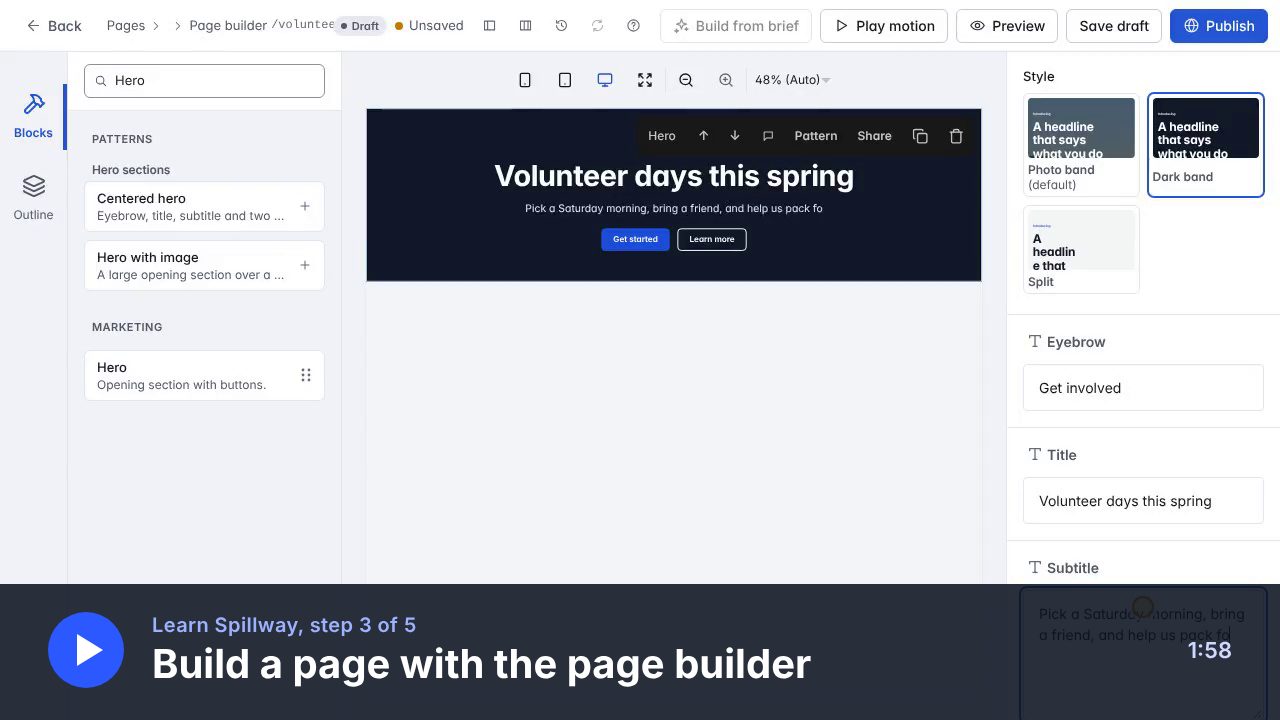
Watch it: Build a page with the page builder, a 1:58 video with no sound; its captions and the transcript on the page carry every step.
Before you start: an author account or higher (content.create); to publish, an editor (content.publish). The first time you open the page builder, a five-step tour points out the blocks, the canvas, the properties panel, Publish and Preview; follow it or choose Skip tour, and replay it later from Help → Replay the page builder tour.
Steps
- Content → Pages → New page. Type a Title. The slug follows it (
Volunteer daysbecomesvolunteer-days) until you edit it, and the path under it shows the public address. Choose Save draft: the page now exists as a draft only people signed in to the admin can see. - Choose Open page builder under the Layout field. The builder fills the screen: the blocks on the left, the page in the middle (the canvas), the selected block's fields on the right.
- Add blocks. Drag a block from the left panel onto the canvas, or click it to add it after the selected block (or at the end of the page). Start with a Hero, then a Text block. Search blocks filters the list by name, and Patterns at the top add ready-made sections such as feature cards or a call to action.
- Edit the content. Click a block to select it and change its fields on the right. Headings, the Hero's title and subtitle and card text can also be typed straight on the canvas. A Text block's Visual editor formats text and adds links (Link, with Or find a page), images and tables; HTML shows the same text as markup.
- Arrange the layout. Put blocks in a Section for a band with its own Background (Page background, Surface, Primary color, Secondary color or Dark) and Width (Narrow, Normal or Wide), or in Columns (two to four side by side, Equal, Wide first (2:1) or Wide second (1:2), which stack on phones). Drag blocks into a column's slot. Move a selected block with the arrows on its action bar or Alt+Up and Alt+Down; the Outline in the left rail shows the page as a tree.
- Adjust spacing and motion. Every block's fields end with Space above and Space below (Auto keeps the page's rhythm) and Motion: an Entrance such as Fade in or Rise with a Delay, and on blocks with items On hover effects. Play motion in the header plays the entrances in the canvas. What plays depends on the brand's motion level, and visitors who ask for reduced motion always see the page still.
- Save and preview. Save draft writes a new revision. Preview opens the last saved draft in a new tab under a bar that says Draft preview, not live.
- Publish. Publish (for people who can publish) saves and publishes in one step, after the pre-publish checks: if one reports an error, Publishing blocked by checks lists it with a link to the block. Authors choose Back and Submit for review instead; see Review and publish content.
Check the result
- The page answers at its path, for example
/volunteer-days, without signing in, and View site opens it. - The status next to the page title reads Published. Save another change and it reads Published with an Unpublished changes marker until you publish again; visitors keep seeing the published version.
- The page's Revisions panel lists "Layout edited in page builder" and "Published from page builder".
Notes
- Choose a block's style with its Style field. There are no color pickers: the styles come from Brand, so every page stays on brand.
- Share on a block's action bar saves it to Shared blocks, to reuse on other pages and edit in one place.
- Below 638 px the builder switches to a phone layout with Blocks, Outline and Fields in a bar at the bottom.
Going further
- Add an image from the media library, the next step.
- Your first page in the page builder in the manual for every builder control and keyboard shortcut.
- blocks.md for what every block does; Build a page with AI to start from a brief.
Spillway 0.1.24