
Sign in and turn on two-step sign-in
This guide covers signing in to the Spillway admin with a password or single sign-on, resetting a forgotten password, and protecting your account with a code from an authenticator app.
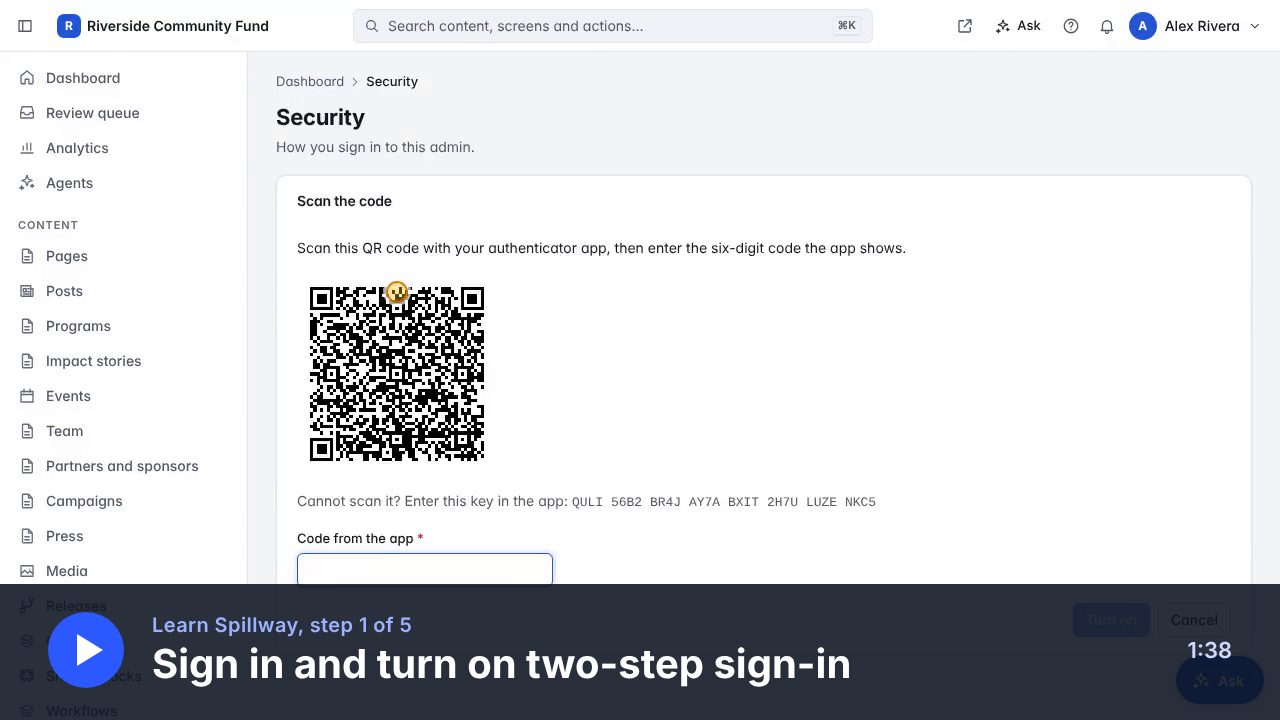
Watch it: Sign in and turn on two-step sign-in, a 1:38 video with no sound; its captions and the transcript on the page carry every step.
Before you start: an account on the site. An administrator creates it under Users and sends you an invite link, which opens a screen where you choose your password; on a new instance, the person who ran the setup wizard has the first account. For two-step sign-in, an authenticator app on your phone (1Password, Google Authenticator, Microsoft Authenticator, Authy or similar).
Sign in
- Open your site's address followed by
/admin, for examplehttps://www.example.org/admin. You land on the sign-in screen. - If your organization signs in through its identity provider, choose Continue with and the provider's name (for example Continue with Okta), sign in there, and you come back signed in. Single sign-on never asks Spillway's own code: your identity provider owns the second step.
- Otherwise type your Email and Password and choose Sign in. The admin opens on the dashboard, or on the screen you were trying to reach.
- With two-step sign-in on, the next screen says Enter your code: type the six-digit code your authenticator app shows for this site and choose Continue. Lost your phone? Type one of your recovery codes instead; each works once. Sign in again goes back to the first screen.
Forgot your password? on the sign-in screen asks for your email and emails a link that works once, for one hour. You always see the same answer, whether or not an account uses the address. When the site cannot send email yet, the screen says to ask an administrator, who can send you a reset link from Users.
Turn on two-step sign-in
- Open the account menu (your name, top right) and choose Security.
- Choose Set up two-step sign-in. A QR code appears under Scan the code.
- Scan it with your authenticator app. If you cannot scan, type the key shown under the code into the app instead.
- Type the six-digit code the app shows and choose Turn on.
- Save the ten Recovery codes: Copy or Download them into a password manager, then choose I saved them. They are not shown again.
From then on, signing in with your password, a reset link or GitHub asks for a code. New recovery codes (with a code from the app) replaces the old set; Turn off takes a code or a recovery code, unless the site requires two-step sign-in for you.
Check the result
- Security shows Two-step sign-in with the On badge and how many recovery codes are left.
- Choose Sign out in the account menu and sign in again: after your password, the Enter your code screen appears.
- An administrator sees Two-step in your row of the Users list.
Notes
- An administrator can require two-step sign-in for administrators or for everyone under Site settings → Security. If it applies to you and is not on yet, signing in opens Turn on two-step sign-in and nothing else until you finish it.
- Lost your phone and your recovery codes? An administrator chooses Turn off two-step on your page under Users, and you set it up again.
Going further
- Find your way around the admin, the next step after signing in.
- Account menu and Security in the manual.
- Set up SAML with Okta to add single sign-on for your organization; sso.md for every provider.
Spillway 0.1.24