
Find your way around the admin
This guide is a tour of the Spillway admin: the dashboard, the sidebar, the top bar, the command palette, the Ask panel and the lists every screen shares.
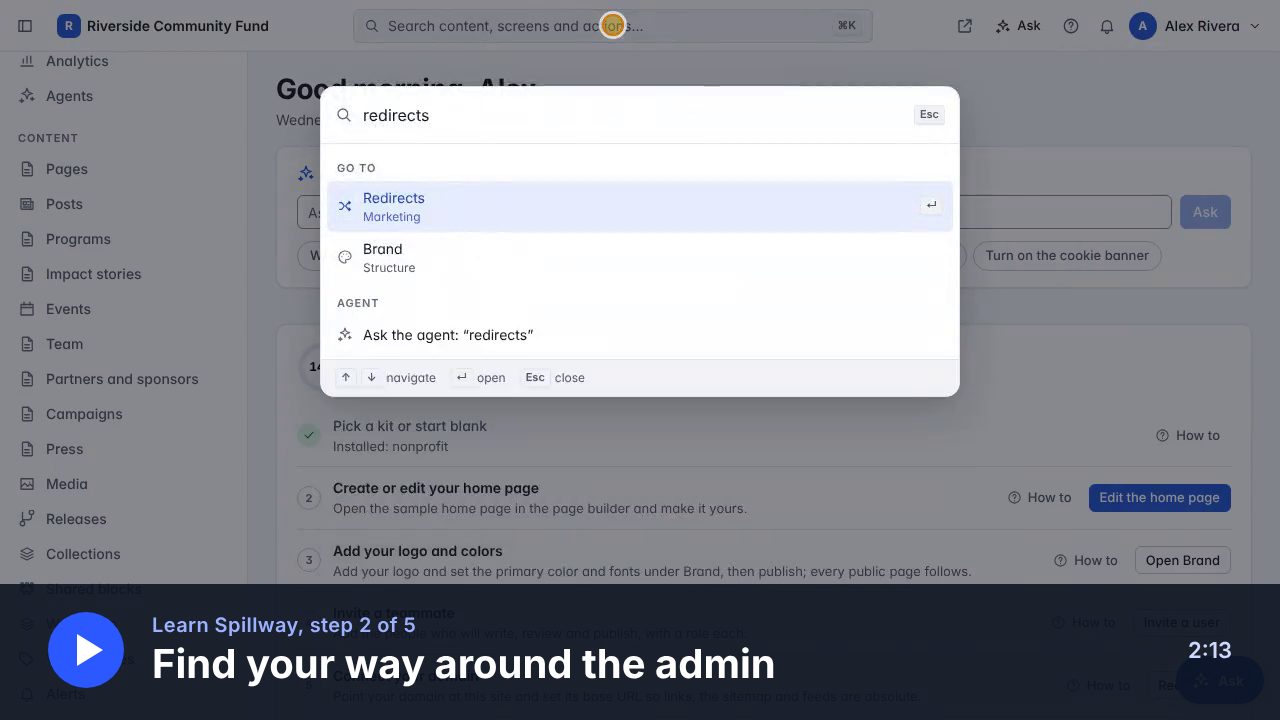
Watch it: Find your way around the admin, a 2:13 video with no sound; its captions and the transcript on the page carry every step.
Before you start: you are signed in (Sign in and turn on two-step sign-in). What you see depends on your role: entries you lack the permission for are hidden.
Steps
- Start on the dashboard. Dashboard is the first sidebar entry and where you land after signing in. It greets you, offers Ask the site agent with suggested questions, and shows Top tasks (New page, New post, Upload media, Invite a user, Site settings), the content per type and status, Waiting for review, Scheduled, Traffic, last 7 days and Recent activity. On a new site, people who can change settings also see the Getting started checklist: each step opens the right screen and checks itself off as the site changes.
- Read the sidebar from top to bottom. The first group holds Dashboard, Review queue, Analytics and Agents. Content lists one entry per content type (Pages, Posts and the types a kit adds), then Media, Releases, Collections, Shared blocks and the rest. Marketing holds Forms, Redirects, Experiments and Audiences; Structure holds Content types, Components, Menus, Placements, Brand, Kits and Import; System holds Settings (the Site settings screen), Users, Roles and permissions, Modules, Updates and Go live. Click a group's heading to fold it; Collapse sidebar (or the
[key) shrinks the sidebar to icons. - Use the top bar. From left to right: the site name (a site switcher when you can open more than one site), the release switcher once a release is open, the search box, View site (the public site in a new tab), Ask, the question mark for Help, the notification bell (review requests, returned drafts, today's schedule) and the account menu with the theme (Auto, Light or Dark), Interface language, API tokens, Security, My preferences, Keyboard shortcuts and Sign out.
- Jump anywhere with the command palette. Press Ctrl+K (Cmd+K on a Mac) or click the search box. Type a screen ("redirects"), an action ("new page") or the title of a page, and press Enter. The last row, Ask the agent, sends what you typed to the site agent.
- Ask the site agent. Ask in the top bar, or the Ask button in the bottom-right corner of every screen, opens the agent beside the screen you are on. Ask how to do something ("Where do I change the logo?") and it answers with links to the right screen. See Work with the site agent.
- Work with lists. Open Pages. Every list has a search box, a status filter, sortable columns, Views to save a list setup under a name, and a checkbox per row: tick rows and an actions bar offers Publish, Unpublish, Archive and more. New page sits at the top right. Click a row to open it in the editor.
- Get help. The question mark opens Help: the Manual, the How-to guides, Keyboard shortcuts (also the
?key), Replay the page builder tour, the Getting started checklist, the Status page, Report a problem and the version the site runs.
Check the result
- Ctrl+K, type
mediaand press Enter: the Media library opens. - Help shows the running version, for example
Spillway v0.1.18, to quote when you report a problem.
Notes
- Every editor warns before you lose work: leaving with unsaved changes opens Unsaved changes with Discard changes and Stay.
- Below 900 px wide the sidebar becomes a drawer behind the Menu button, so the admin works on a tablet or a phone.
Going further
- Build a page with the page builder, the next step.
- The admin at a glance and Dashboard in the manual, which takes every sidebar entry in order.
Spillway 0.1.24